How many hours did your team log last month? Why Jira’s JQL total is the wrong number

Ask Jira which work items had time logged in September and it answers correctly. Add up their Time Spent and you get a number that includes August, October and everyone else’s hours. Here is how to measure that gap on your own site in ten minutes, and how our app reports the real number.
The short version
worklogDatein JQL finds work items, not worklogs. One September entry is enough for the whole item to match.- The Time Spent column then shows each item’s total: every worklog, every author, every month.
- In the example below, the JQL total is 130 hours. The hours actually logged in September are 58.
- You can measure your own gap without installing anything: one search, one column, one work item opened.
- Worklog Time Tracking in Jira & Timesheets counts each worklog by its own date and author, groups by month, person or billable, and exports the same view to CSV. Free for up to 10 users.
1. The month-end question
It is the 15th. The client wants September’s hours on the invoice, finance wants them for payroll, or your manager wants them for a capacity review. The question is always the same: how many hours did these people log on this project between the 1st and the 30th?
Jira has the pieces to answer it. Time tracking records every worklog with an author, a date and a duration. JQL has a field for worklog dates. The work item search can show a Time Spent column. Put them together and you get a confident total in under a minute.
That total is usually wrong, and nothing on the screen tells you so.
2. Why the JQL total is wrong
Atlassian’s JQL reference describes the field like this:
“Search for work items with work logged on a specific date.”
Source: Atlassian, JQL fields, “Worklog date”
The result is a list of work items. A work item matches if at least one of its worklogs falls on the date or in the range. Nothing is filtered inside the item.
Then you add the Time Spent column. Time Spent on a work item is the total of all its worklogs: from the day it was created to the moment you run the search, by everyone who ever logged on it. You can check this on any work item: compare its Time tracking field with the entries in its Work log tab.
So the search for “September” returns the right items with the wrong hours. Three things leak in:
- Earlier months. A long-running item that started in August brings all of August with it.
- Later days. If you run the report on 15 October, the first two weeks of October are in the total too.
- Other people. Time Spent counts everyone who logged on the item. If you need one person’s September, the column cannot give it to you.
There is also a ceiling to know about. From the same Atlassian page:
“If a work item has more than 1,000 worklogs, JQL will only search the most recent ones. To find older worklog entries, use the work item view or export the data directly.”
Source: Atlassian, JQL fields, “Worklog date”
3. A worked example
An illustrative example. The project and numbers are made up; the arithmetic is the real mechanism.
A small agency bills its client, Northwind, by the hour. On 15 October the project manager runs:
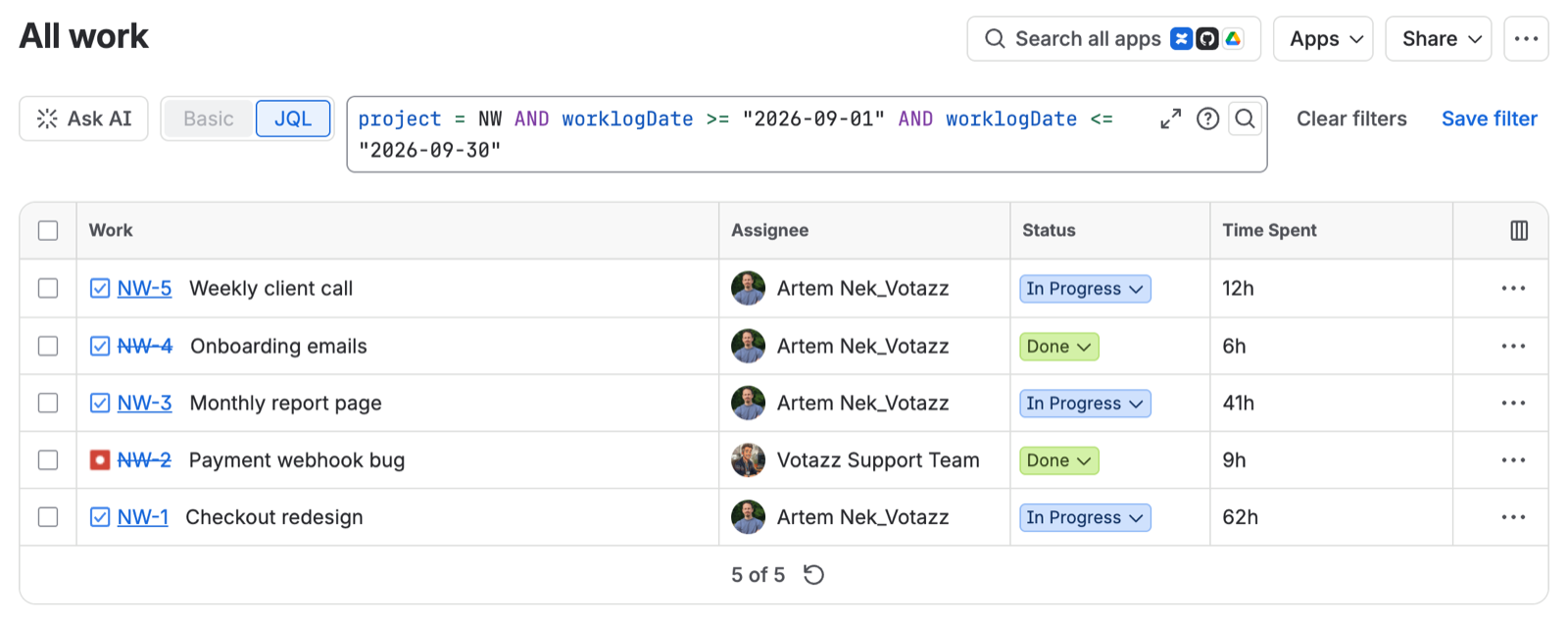
Five work items come back. Here is what the Time Spent column says, and what was really logged in September:
| Work item | Time Spent (column) | Logged in September | Where the rest came from |
|---|---|---|---|
| NW-1 Checkout redesign | 62h | 24h | 38h in August |
| NW-2 Payment webhook bug | 9h | 9h | |
| NW-3 Monthly report page | 41h | 15h | 26h logged 1 to 14 October |
| NW-4 Onboarding emails | 6h | 6h | |
| NW-5 Weekly client call | 12h | 4h | 8h in July, August and October |
| Total | 130h | 58h | 72h from other months |
The search was correct: all five items did have time logged in September. The total was not: 130 hours against 58 actually logged, so the invoice would be more than twice the real figure. And of those 58 hours, the 4 hours of client calls are not billable at all, so the billable number is 54.
Nobody made a mistake here. The search answered the question it was built for: which work items. The month-end question is about worklogs.
4. Check your own gap in 10 minutes
No app needed for this part.
- Open Jira’s work item search and switch to JQL.
- Run the search for last month on one project you bill or report on:
- Add the Time Spent column and note the total. That is your JQL number.
- Sort by Time Spent and open the top work item. In its Work log tab, add up only the entries from September. Jira shows durations in days and hours and dates like “1 month ago”, so this takes a minute of care.
- Compare with the Time Spent of that item. The difference is the overcount for that one item.
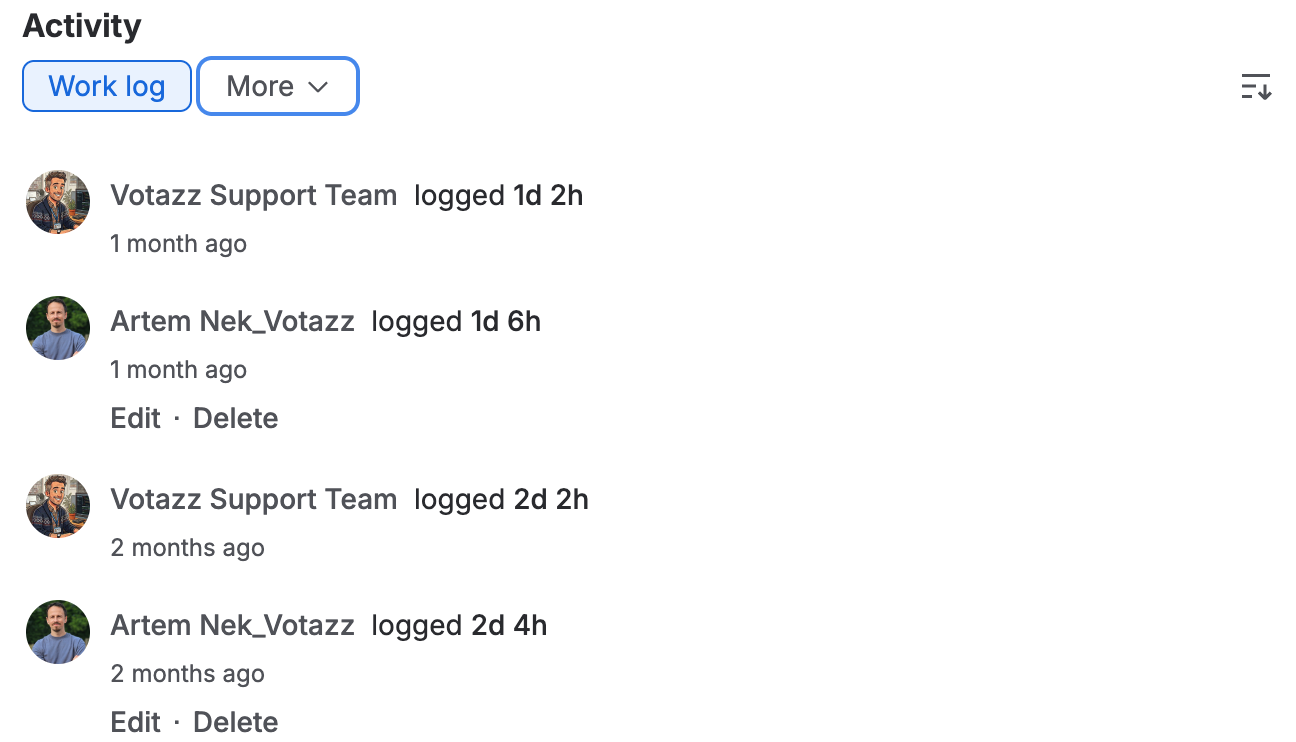
If the top item started before the 1st or is still being worked on, the gap is usually there on the first try. Items whose worklogs all fall inside the month are fine; long-running ones, recurring meetings and support buckets are where the hours leak.
5. Meet Worklog
This is the problem our app Worklog Time Tracking in Jira & Timesheets is built around. It is a Jira Cloud app for reporting and logging time.
It uses the same JQL to find the work items, and then checks each worklog on its own: the date the work was done (the worklog’s start date, not the date it was entered) has to be inside your range, and the author has to be one of the people or groups you picked. Only those worklogs are added up.
The same September report in Worklog:
- Open Apps → Worklog & Timesheets → Worklogs Reports.
- Pick the project (or paste your JQL).
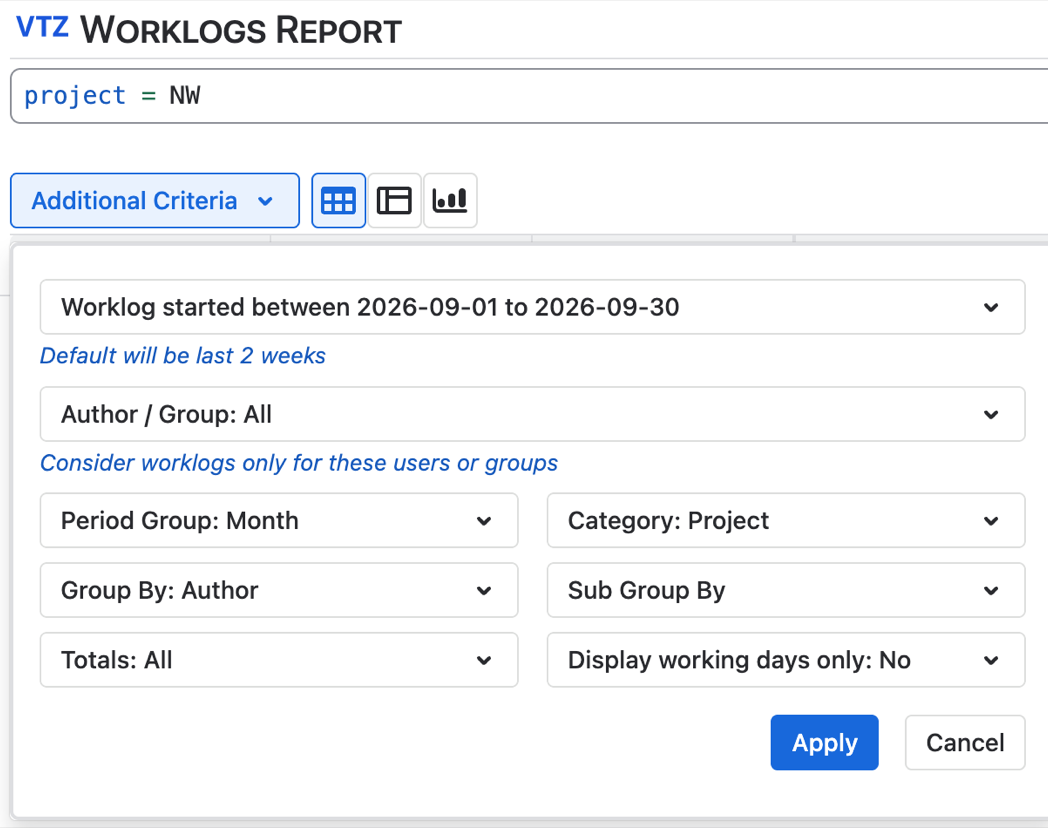
- In the additional criteria, set Worklog started to 1 to 30 September.
- Set Period Group to Month and Group By to the worklog author.
- Apply. Every row now counts only September’s worklogs, per person.
- Export to CSV for the invoice or payroll sheet. The export contains the same filtered rows.
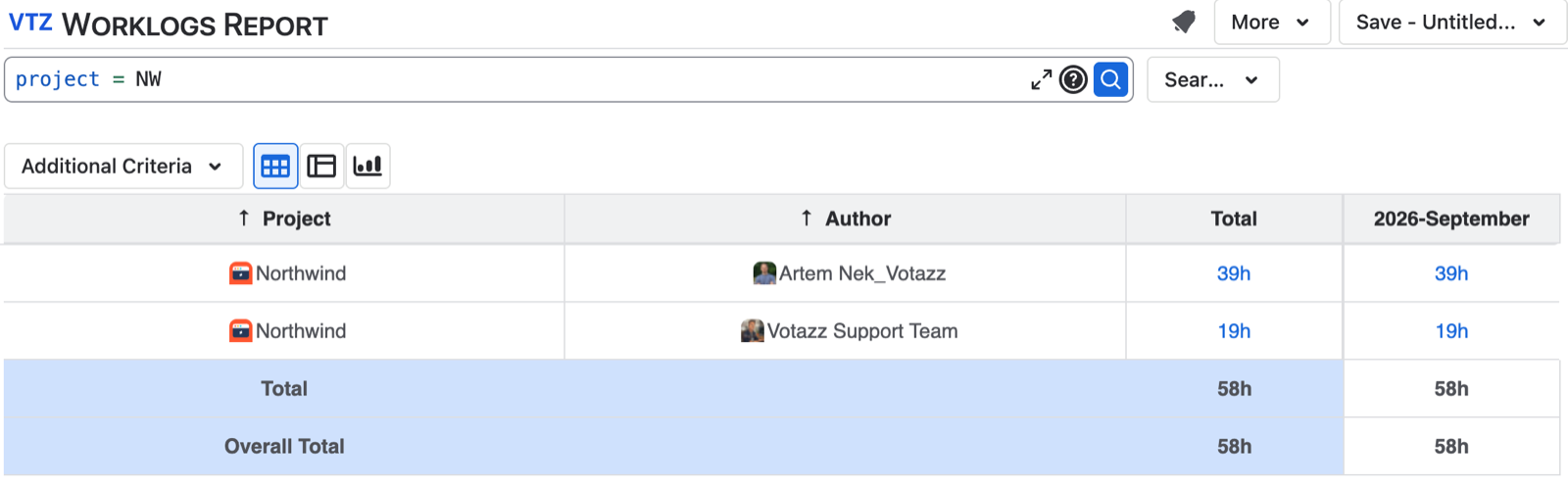
For the example above, that report would show 58 hours, split by person.
Billable and non-billable
The 54 versus 58 question needs one more piece of information that Jira does not store on a worklog: whether the time is billable. Worklog adds worklog attributes for that. An admin defines them (for example Billable, Customer or Activity type, as a dropdown, multi-select, text or number), and people fill them in when they log time. The report can then group by the attribute, so billable and non-billable hours come out as separate lines.
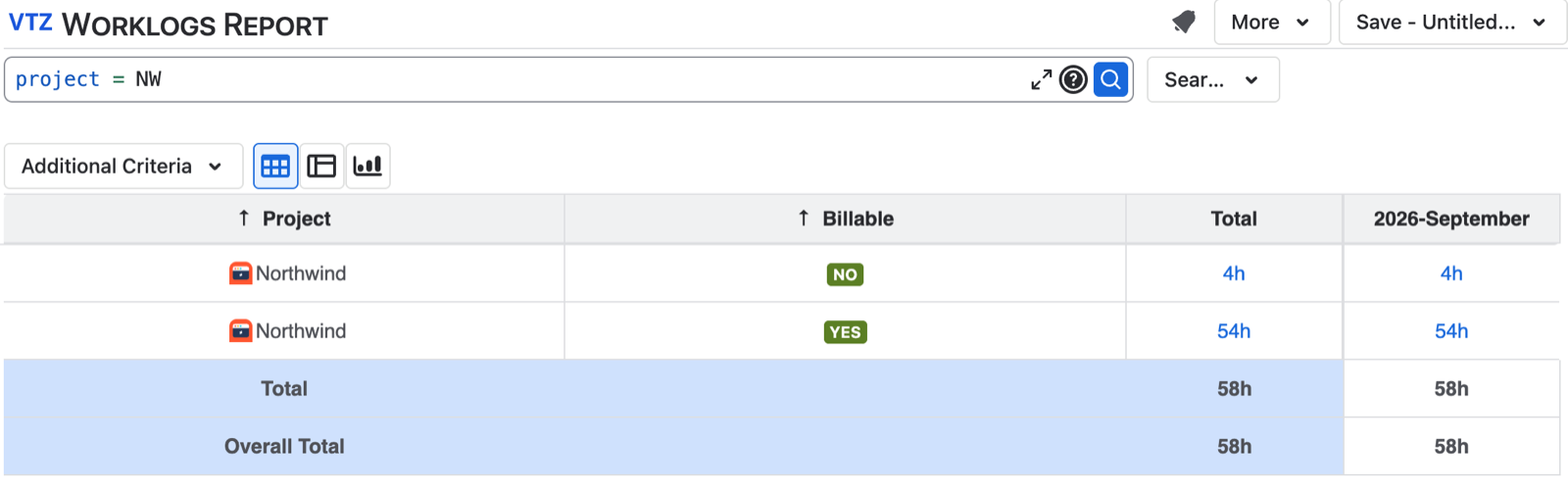
Attributes are part of the Advanced edition. To turn them on, the admin sets Jira’s time tracking provider to Worklog & Timesheets. Details are in the attributes guide.
The rest of the app
- Timesheets: log time across many work items and days from one screen, in a table or a Kanban-style view, instead of opening each work item.
- Time Tracking gadget: time spent for a date range on a Jira dashboard.
- Saved reports and CSV export for anything you build in Worklogs Reports.
Worklog is free for teams of up to 10 users. At the time of writing the listing has a 4.7 average from 20 reviews, and version 2.15.0 shipped on 14 October 2026.
The bottom line
A JQL search for “worklogs in September” returns the right work items and the wrong hours, because Time Spent belongs to the work item, not to the month. Run the five-step check on one project and you will see your own gap. If the gap matters, for invoices, payroll or a capacity review, count worklogs, not work items.
What I could not verify
- Author searches. Atlassian’s JQL fields page does not list a field for worklog authors, so this article does not rely on one.
- Time zone of
worklogDate. Atlassian does not document which time zone Jira Cloud uses to decide that a worklog falls on a given date. Worklog compares dates in the time zone set in its settings. For worklogs logged close to midnight the two can differ by a day.
Sources
- Atlassian, JQL fields: “Worklog date” and “Time spent”.
- Atlassian, JQL functions: startOfMonth and endOfMonth, if you prefer relative dates over fixed ones.
- Atlassian, Configure time tracking.
- Votazz, Worklog documentation.
Worklog Time Tracking in Jira & Timesheets is a Votazz app. Atlassian, Jira and Marketplace are trademarks of Atlassian.