Your Jira cycle time counts the night. How to see it in working hours

Three tasks on our demo board were in progress for exactly one week. Jira’s Control Chart says each one took 5 days and 1 hour. Counted in working hours, each took 45. Here is where the difference comes from, and how to check your own board in ten minutes.
See Time in Status on the Atlassian Marketplace
The short version
- The Control Chart plots each work item’s cycle time as elapsed time. Every day counts as 24 hours.
- With the board’s default setting, weekends are left out. Nights are not: about 15 of every 24 hours are outside a 09:00 to 18:00 day.
- On our demo board: 121 hours in the chart, 45 working hours in reality, for the same week of work.
- You can check your own board in ten minutes with one dot and one History tab.
- Time in Status Reports for Jira counts time in each status on your working calendar. Free for up to 10 users.
What the Control Chart measures
Atlassian’s description of the chart is short and precise:
“The vertical placement of the dot represents the cycle time for the work item, i.e. the ‘Elapsed Time’.”
Source: Atlassian, View and understand the control chart
Elapsed time is the time between two timestamps. A task that goes into In Progress at 16:00 and is done at 11:00 the next day has 19 hours of elapsed time and 4 hours of work in a 09:00 to 18:00 day.
The chart has one viewing option, Include non-working days in calculations. It is off by default, so the board’s non-working days (Saturday and Sunday, plus any dates you add in the board’s Working days settings) are left out. The hours of a working day are not: a working day in the chart is 24 hours long. The chart is also available in company-managed spaces only.
A real example
A measurement on a demo project on our test site. The work items and people are test data; the status changes happened at the times shown.
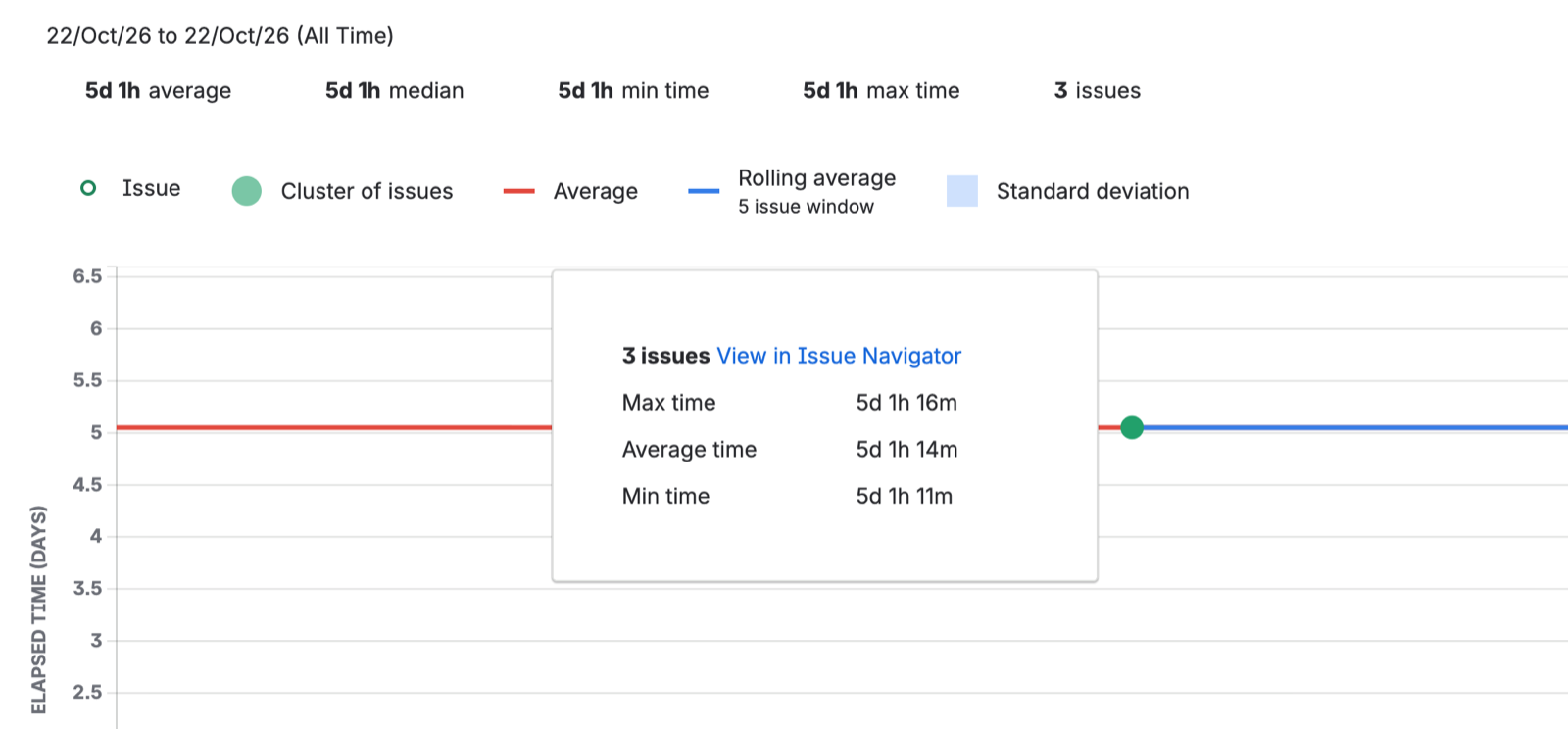
Three work items went into In Progress and into Done exactly one week later: 7 days and 1 hour on the clock. Working hours: Monday to Friday, 09:00 to 18:00, in our test user’s time zone (Sydney). That week held five full working days.
| Each work item | |
|---|---|
| Elapsed, clock time (and the chart with non-working days included) | 7 days 1 hour |
| Control Chart, default (weekend left out) | 5 days 1 hour = 121 hours |
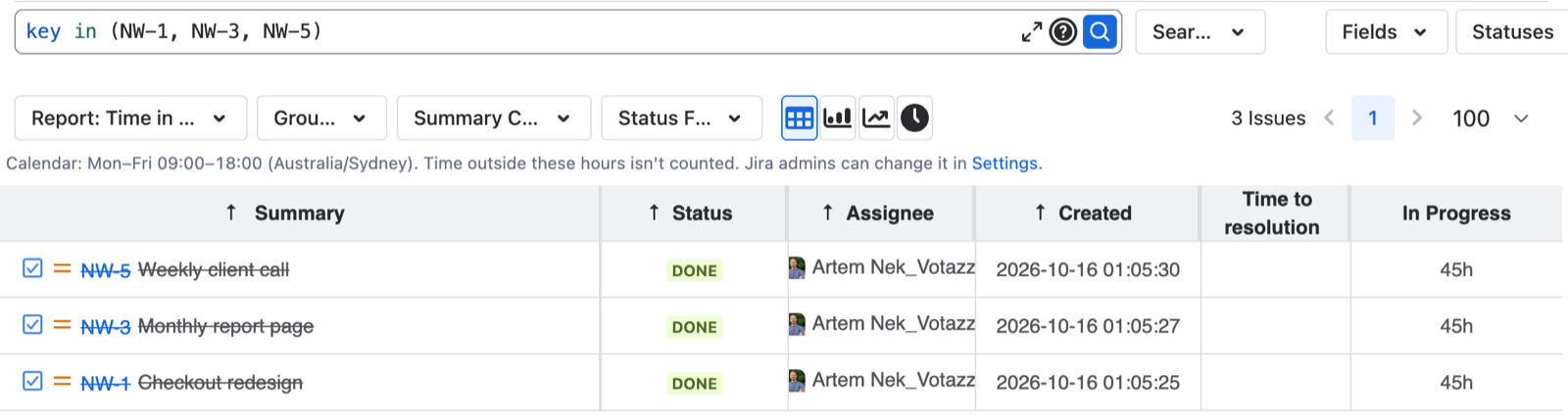
| Working hours (5 days × 9 hours) | 45 hours |
If your team uses that average for a forecast or an estimate in hours, it is off by a factor of 2.7 (121 / 45) before anything else goes wrong.
Check your own board in 10 minutes
- On a company-managed board, open Reports → Control Chart.
- Keep only the columns where work happens (for example In Progress and In Review). Timeframe: past month.
- Select the highest dot and note its cycle time.
- Open that work item, Activity → History: find when it entered those columns and when it left.
- Count the working hours in between and compare.
Work that starts in the afternoon and finishes the next morning shows the biggest gap. Work that starts and finishes on the same day is fine.
Meet Time in Status
Our app Time in Status Reports for Jira reads the same status history and counts the time in each status on a working calendar: working days, work start and end time, holidays. A Jira admin sets the calendar once in Time in Status Reports Settings; out of the box it is Monday to Friday, 09:00 to 18:00.
The same three work items in the app: Apps → Time in Status Reports → Time in Status, the three work items, status In Progress, time unit Hours.
A few more things the report does that the chart cannot:
- Status Groups add In Progress, In Review and Testing together as one cycle time column.
- Median and 85th Percentile instead of an average, so one stuck ticket does not move the number.
- Status Count shows how many times a work item went back into a status.
- Excel export, dashboard gadgets and a JSON feed for Power BI.
Time in Status is free for teams of up to 10 users. Version 4.3.0 shipped on 21 October 2026. Documentation.
The bottom line
The Control Chart answers “how much time passed”, on a 24-hour clock. Before you use its average for a target or a forecast, check one dot in working hours. The gap on your own board is the number to know.
Sources
- Atlassian, View and understand the control chart.
- Votazz, Time in Status documentation.
Time in Status Reports for Jira is a Votazz app. Atlassian, Jira and Marketplace are trademarks of Atlassian.